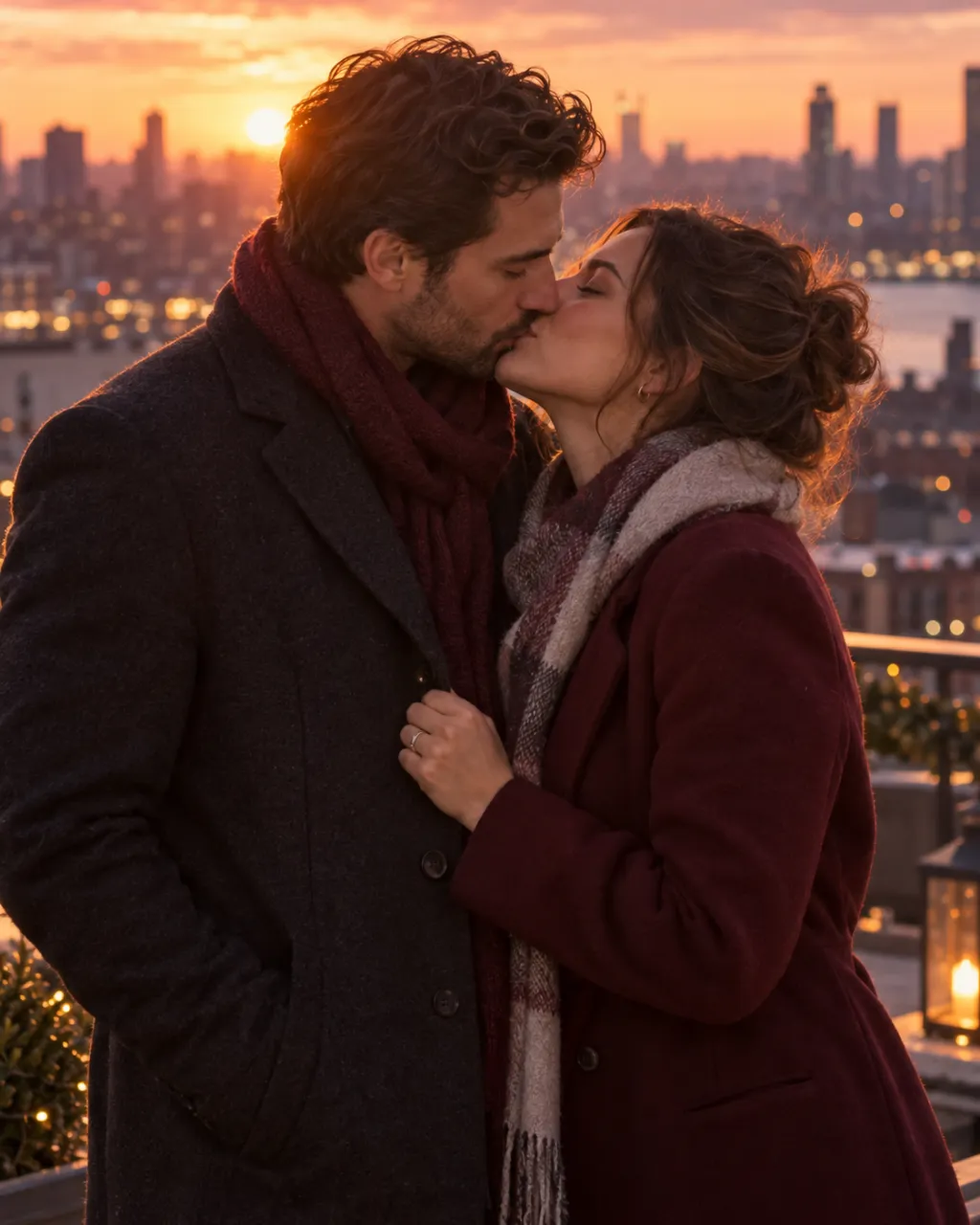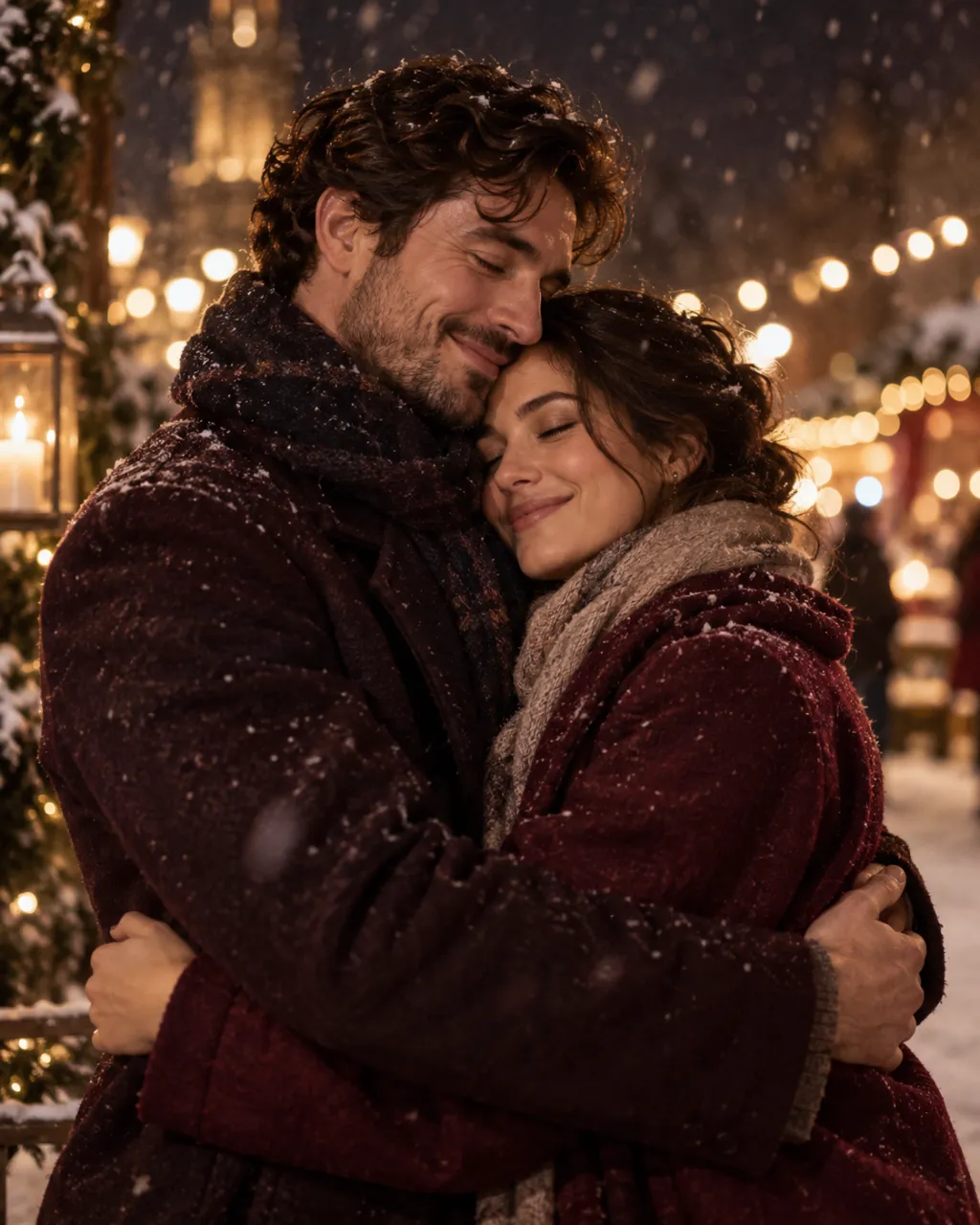
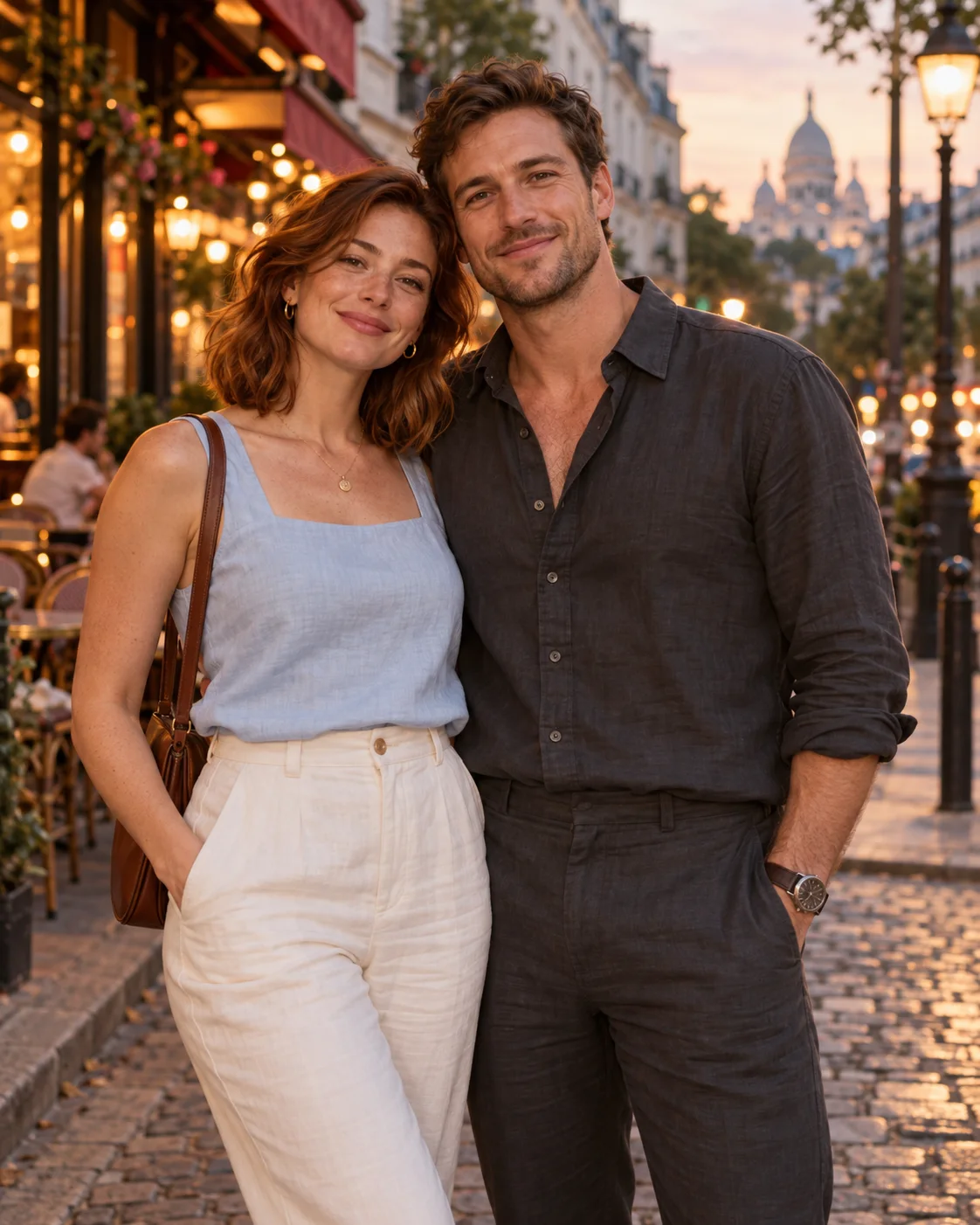
Start with two clear portraits
Add one adult to Person 1 and the other to Person 2. Clear faces, visible clothing and similar camera distances give you a useful starting point. A heavily filtered selfie and a distant, dim portrait are harder to bring together. Choose fully clothed adults who agreed to the edit.
If you choose Flux 3, check both files: each photo must be at least 256 by 256 pixels and no more than four megapixels. The limit applies to each upload. Look for similar light direction too; a face lit from the left can look out of place beside one lit strongly from the right.
Decide where each person stands
The pose choices include standing side by side, embracing, walking hand in hand, a back hug, touching foreheads and a ballroom dance pose. Pick one, then use extra details to place the people. You might ask for Person 1 nearest the café window and Person 2 turned slightly toward them.
Choose a setting that fits their clothing: a park, snowy street, sunset beach, rainy city, cherry blossoms, café or photo studio. A plain studio background keeps attention on the pair. This creates one still picture, including when you choose a walking or dance pose.
Choose a model and picture format
Flux 3 and Seedream 5.0 Pro both receive the two photos as separate references, with Person 1 first. Each generates a new scene using your selections. Faces, clothing and body proportions may change; neither model promises an exact match to both photographs.
Pick portrait at 3:4, square at 1:1 or landscape at 4:3. Think about the final crop: portrait keeps the pair prominent, while landscape leaves space for the setting. Once the picture is ready, inspect hands, shoulders, overlapping arms and the light on each face. If something looks confused, try a simpler pose or a clearer photo.
Animate a photo you want to keep
The finished picture is saved in your private library. Open it at full size and download it if you’re happy with it. To make a video next, keep both faces visible and leave some room for movement in the still you choose.
Open AI Kiss, AI Hug, AI Cheek Kiss or AI Back Hug, choose Library and select the couple photo. You’ll start a separate video generation from that shared portrait. Check the still first: awkward placement can carry into the animation, and the movement can introduce further changes to faces or clothing.